Audit Logs
Review a record of every third-party inference request you have made, with its model, latency, token usage, and status.
An audit record is a summary of one inference request: which model served it, when it completed, how long it took, how many tokens it used, and what status it returned. Hyperstack AI Studio writes one for every request you make against a third-party model, so you can reconcile your usage and investigate a single request after the fact. This page covers what a record holds and how to narrow the list down.
What an Audit Record Contains
Each record answers the questions that come up when you are reconciling usage or chasing down one request.
| Field | What it tells you |
|---|---|
| Request ID | The identifier of the request that produced the record. Quote it when you raise a support ticket so the request can be found directly. |
| Created at | When the request completed. |
| Model | The model the request was routed to, with its display name. |
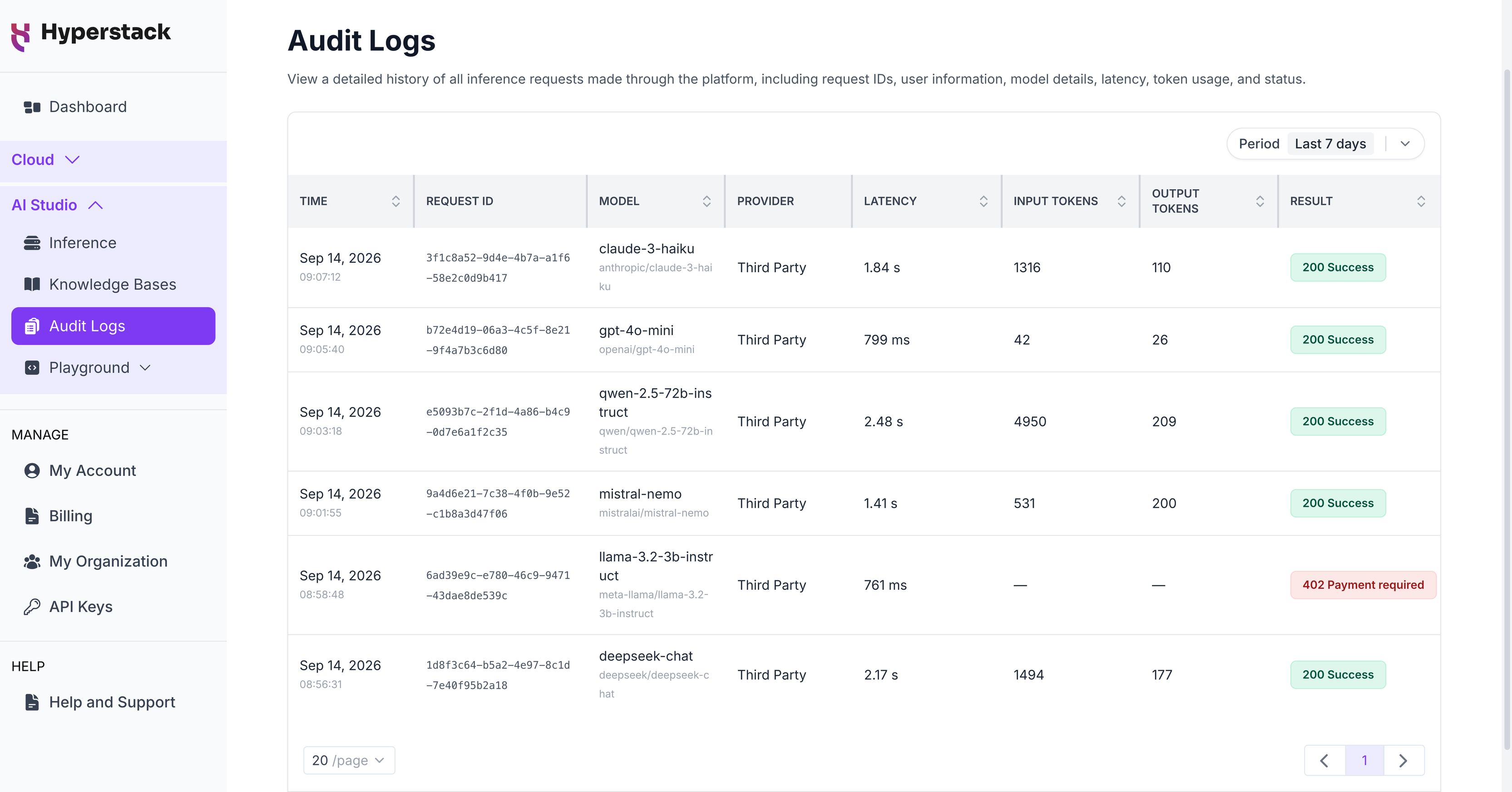
| Provider | Who served the request. Requests to third-party models show Third Party. |
| Latency | How long the request took to serve. |
| Token usage | The input tokens consumed and the output tokens generated. |
| Status | The HTTP status AI Studio returned for the request. |
Which Requests Are Logged
Every third-party inference request produces a record, whatever the outcome. Requests that failed and requests that timed out are recorded alongside the ones that returned an answer, each carrying the status it ended with.
This matters most when you are investigating a problem rather than reviewing normal usage. A request that never returned an answer is the one you most need evidence of, and its record is there with the status that explains how it ended.
You see the requests you made yourself.
View Your Audit Logs
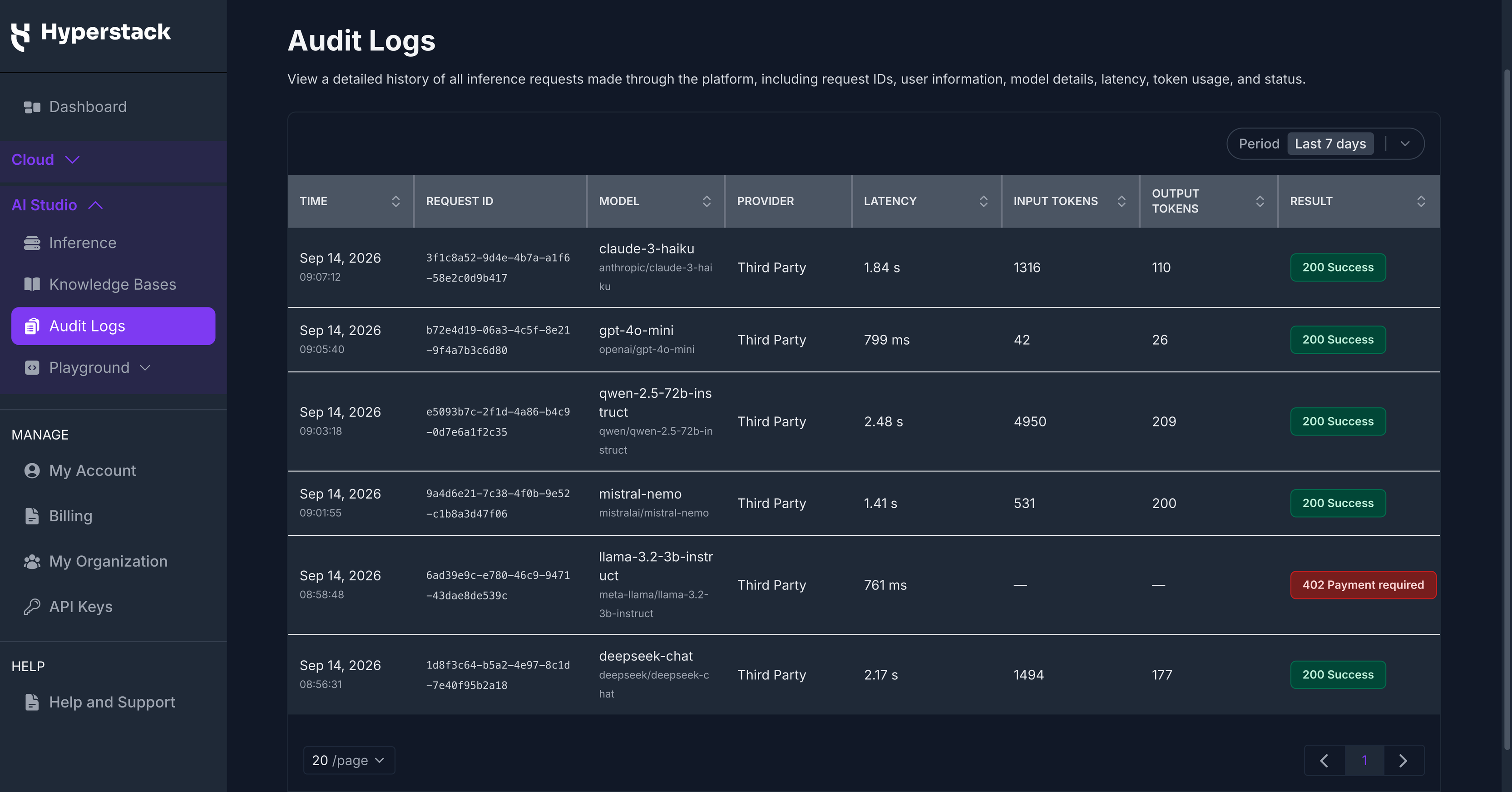
Navigate to the Audit Logs page in Hyperstack AI Studio. Each request appears as a row in the table, and the Period control sets the window the table covers.
Narrow the List
Records are listed newest first, so the most recent request is at the top.
Set Period to choose the window you want. Presets cover the last 24 hours, the last 7 days, and the last 30 days, and Custom range takes a start and end date of your own. Change the records-per-page value to control how many rows load at a time, then page through the rest.
Using the API
Retrieve the same records programmatically with the List audit logs API, a GET request to /audit/inference. Authenticate it with your AI Studio API key, as described in Get Started with the API.
| Parameter | Required | Description |
|---|---|---|
start_datetime | Yes | Start of the window to search, inclusive. ISO 8601, timezone-aware. |
end_datetime | No | End of the window to search, exclusive. Defaults to now. |
page | No | Page number, starting at 1. |
per_page | No | Records per page, up to 100. Defaults to 20. |
The response carries the matching records newest first, the window that was searched, the total number of matching records, and pagination metadata.